A pricing table can make or break conversions. Visitors land on pricing pages ready to buy, but if the layout is confusing, cluttered, or hard to compare, they leave without deciding.
What makes a pricing table convert
Before looking at specific designs, it helps to understand what separates effective pricing tables from ineffective ones.
Clear plan hierarchy. Visitors should instantly understand the options. Plan names, prices, and primary differences need to be visible without scrolling or squinting.
Scannable feature lists. People compare features across columns. If the rows don’t align or the text is inconsistent, comparison becomes frustrating.
One obvious CTA per plan. Each pricing column needs a clear button and the action should be identical across plans, “Get Started”, “Choose Plan”, or “Start Free Trial”, so visitors focus on which plan, not which action.
Visual emphasis on the recommended option. Most pricing tables highlight one plan. This guides undecided visitors toward the option that works for most people.
Minimal distraction. Pricing tables aren’t the place for decorative elements. Every piece of information should help the decision, not decorate the page.
Pricing table layout patterns that work
Different products and pricing structures call for different layouts. Here are the most effective patterns for Elementor builds.
Three-column comparison
The classic layout. Three plans displayed side by side with aligned feature rows and a CTA button at the bottom of each column.
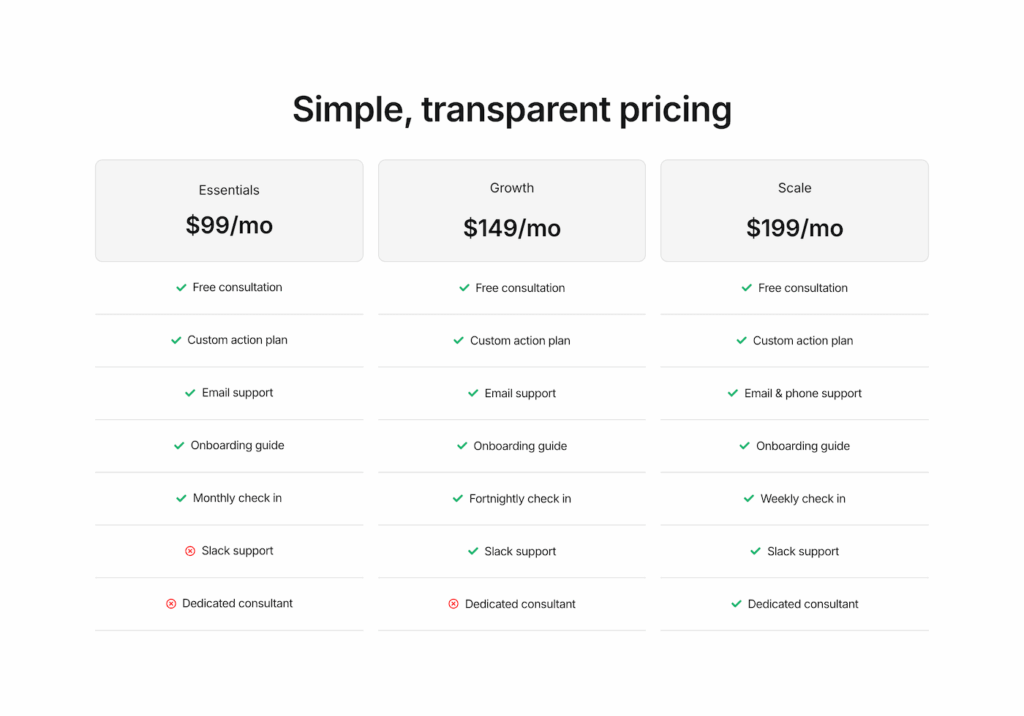
Best for: SaaS products, subscription services, and any offering with tiered plans.
Why it works: Three options hit the psychological sweet spot. Enough choice to feel in control, but not too many that decision paralysis sets in. The middle option naturally draws attention.
Structure notes: Equal column widths keep the layout balanced. Feature rows must align horizontally across all columns. You can highlight the recommended plan with a subtle background color or border. Keep the CTA buttons identical in size and position
Two-column simple
A stripped-back layout for products with just two tiers, typically a free plan and a paid plan, or monthly versus annual pricing.
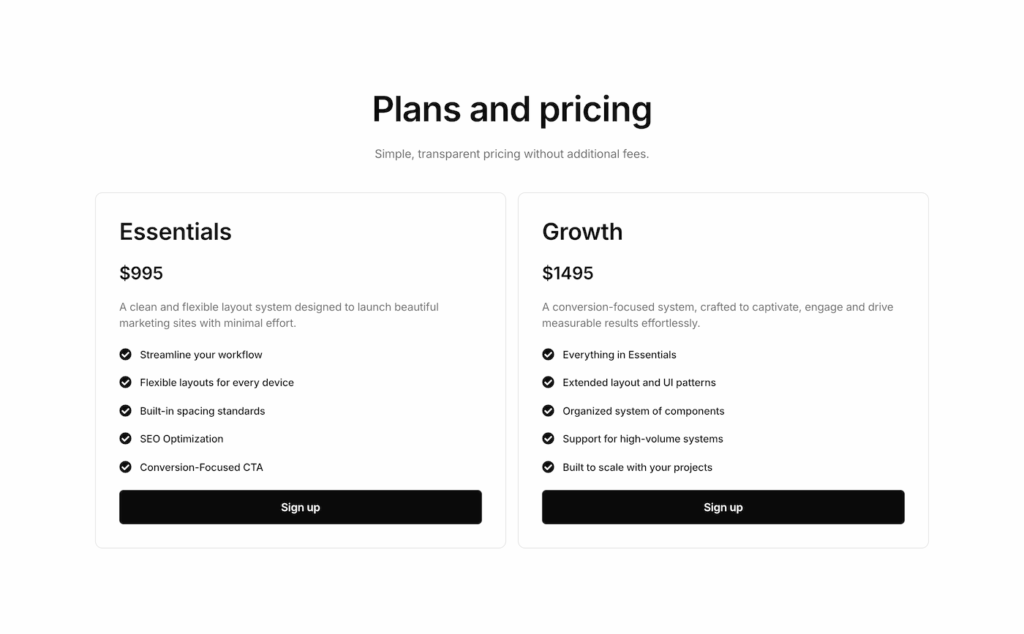
Best for: Freemium products, simple service offerings, or early-stage products with limited plan differentiation.
Why it works: Reduces cognitive load. When there are genuinely only two options, a third empty column or forced “enterprise” tier just adds clutter.
Structure notes: Wider columns than the three-column layout since there’s more horizontal space. This layout can accommodate more detailed feature descriptions per plan. Visual differentiation between first and second options should be clear but not aggressive
Monthly/annual toggle
A pricing table with a toggle switch that lets visitors flip between monthly and annual pricing. The table structure stays the same, only the prices update.
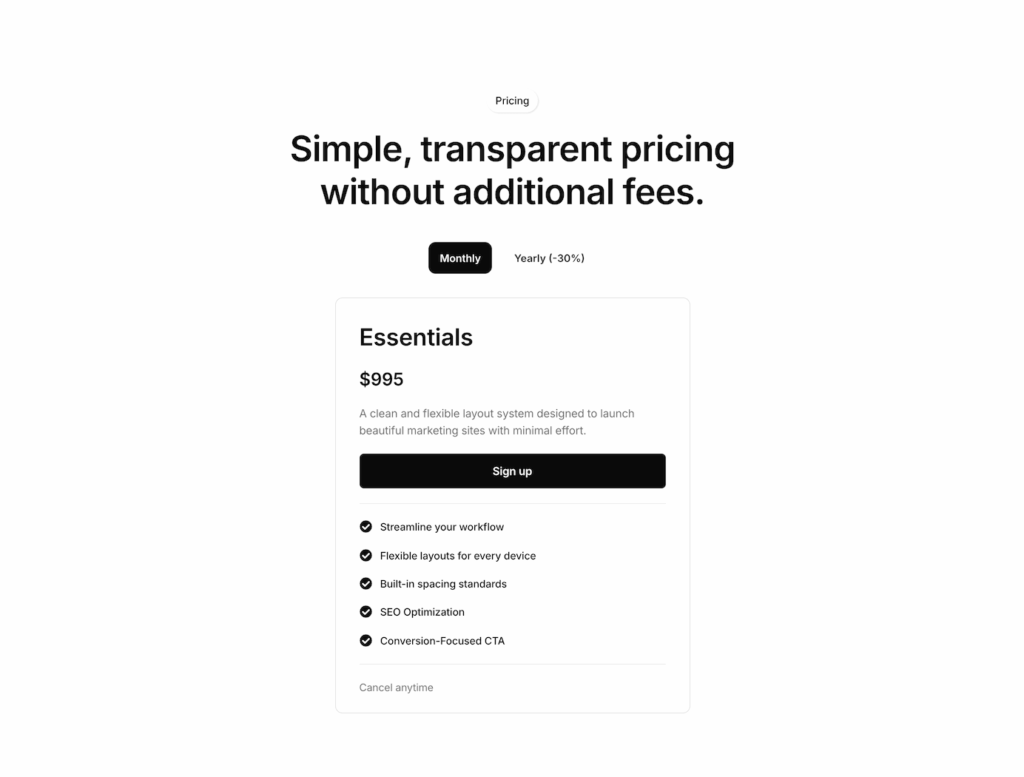
Best for: Subscription products offering discounts for annual commitment.
Why it works: Shows both options without duplicating the entire table. The toggle interaction also draws attention to the annual savings.
Structure notes: The toggle should be positioned above the pricing columns and clearly visible. Annual savings should be highlighted, either as a percentage badge or struck-through monthly comparison. The toggle must feel responsive and obvious so that visitors can immediately understand what it controls.
Feature comparison table
A detailed grid layout with plans as columns and features as rows. Each cell shows whether that feature is included (checkmark), excluded (dash or X), or has a specific limit.

Best for: Products with significant feature differentiation across plans, or technical products where buyers need detailed comparisons.
Why it works: Gives thorough buyers the information they need to justify their decision. Particularly effective for higher-priced plans where the feature gap needs to be clear.
Structure notes: Feature rows need consistent height even when content varies. Use clear visual indicators such as checkmarks and dashes. These tend to work better than “Yes” and “No” text. Consider grouping features into categories with subheadings for longer lists. Sticky column headers help if the table requires scrolling.
Single plan highlight
A layout that focuses on one plan rather than a comparison. The plan details, features, and CTA take center stage without side-by-side alternatives.
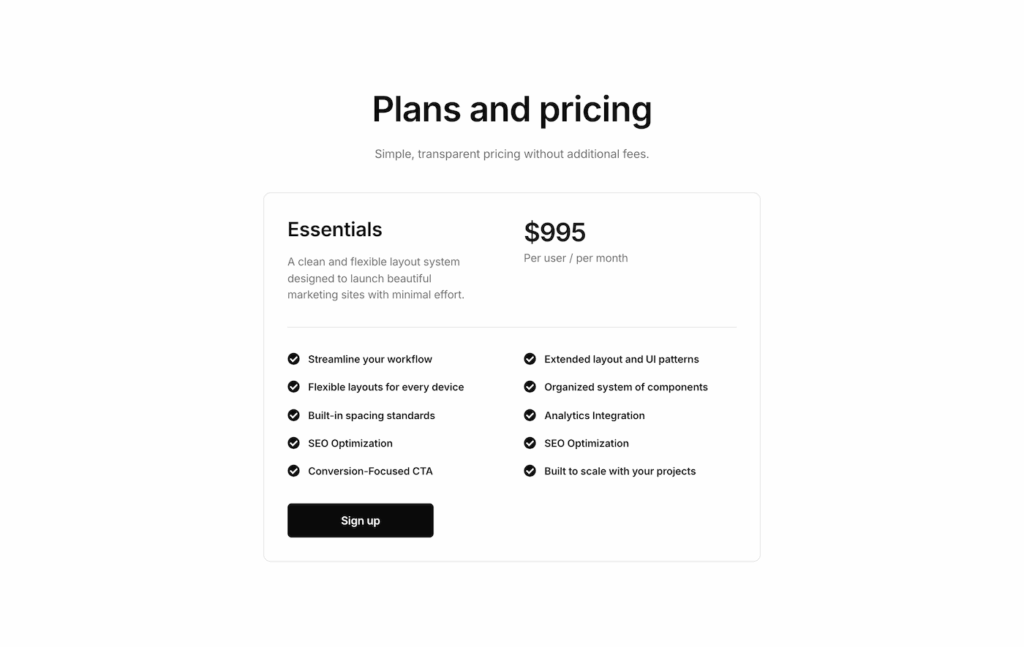
Best for: Landing pages targeting a specific audience, or products with a single primary offering and optional add-ons.
Why it works: Removes comparison entirely. When you want visitors to sign up for a specific plan and not have to choose between options. This layout reduces friction.
Structure notes: This layout can use more horizontal space since there’s no column constraint. Feature lists can be more detailed or split into sections. Works well combined with testimonials or trust signals directly under the pricing table.
Pricing table design best practices
Beyond layout patterns, these details separate polished pricing tables from amateur ones.
Align feature rows precisely
When feature text wraps to two lines in one column but stays on one line in another, the rows become misaligned. This looks sloppy and makes comparison harder.
Fix: Use consistent feature descriptions across all plans. If one plan has a limit (“5 projects”), phrase the other plans similarly (“Unlimited projects”) rather than just (“Unlimited”).
Make the recommended plan obvious
Don’t be subtle. Use a “Most Popular” or “Recommended” badge, a different background color, or a slightly larger column. Visitors expect guidance, so give it to them.
Fix: Test that the highlight is visible on both desktop and mobile. A subtle border that works on desktop may be difficult to see on a small screen.
Keep CTAs identical
The button text should be the same across all plans. “Get Started” on every plan. Not “Try Free” on one and “Buy Now” on another. Inconsistent CTAs create unnecessary hesitation.
Handle mobile thoughtfully
Three-column pricing tables rarely work on mobile without modification. Columns either become unreadably narrow or require horizontal scrolling, which visitors often miss.
Fix: Stack columns vertically on mobile. Lead with the recommended plan. Consider hiding detailed feature comparisons behind an expandable section on small screens.
Show annual savings clearly
If annual pricing offers a discount, make the saving obvious. A toggle alone isn’t enough: show the percentage saved or the effective monthly rate.
Fix: Add a small badge or note next to annual prices: “Save 20%” or “$8/month billed annually” makes the value immediately clear.
Skip the complicated build: Use ready-made pricing sections
Building a pricing table from scratch takes time: aligning columns, balancing spacing, configuring responsive behavior, and testing across breakpoints. For a single project, that’s manageable. Across multiple projects, it’s repetitive work.
Element UI includes a collection of pricing table sections built with Elementor’s Flexbox containers: two are free, and the rest come with Pro. The structure, spacing, and responsive behavior are already configured. Paste one into your project, add the plan details, and the layout work is done.
What’s included:
- Three-column comparison layouts
- Two-column simple layouts
- Toggle pricing sections
- Feature comparison tables
- Single plan highlights
Every pricing section follows the same spacing system as the rest of the Element UI kit, so they integrate cleanly with other sections on the page.
Effective pricing table design comes down to clear options, clear comparisons, and a clear path to action. The layout patterns and best practices in this guide apply whether you’re building from scratch or customizing an existing template.
Frequently asked questions
How many pricing plans should I show?
Three is the standard for a reason: it offers choice without overwhelming visitors. Two works for simpler products. More than four usually creates decision paralysis unless the audience is highly technical and expects detailed comparison.
Should I show the most expensive plan first or last?
Usually the standard is to have the cheapest on the left, most expensive on the right (or top to bottom on mobile). Visitors expect this order. The recommended plan typically sits in the middle position for three-column layouts.
Do pricing tables need feature lists?
Not always. Simple products with clear tier differentiation (limits, usage, support levels) can use minimal feature lists. Complex products with significant feature variation benefit from detailed comparisons. Match the detail level to the decision complexity.
How do I highlight the recommended plan without being pushy?
Subtle visual differentiation works best such as a different background shade, a “Most Popular” badge, or a slight increase in font size. Avoid aggressive colors or animations that feel like manipulation. The goal is guidance, not pressure.
Should pricing tables include a free tier?
If you do offer a free tier, show it. Hiding it makes visitors suspicious. Position it as the first column and ensure the paid plans clearly communicate the additional value. A visible free option can actually increase paid conversions by establishing trust.
What’s the best CTA text for pricing buttons?
Action-oriented and consistent. “Get Started”, “Start Free Trial”, “Choose Plan” all work. Avoid vague text like “Learn More” or aggressive text like “Buy Now” unless the context specifically calls for it.