If building sites with Elementor feels slower than it should, you’re not imagining it. You end up rebuilding the same sections again and again, and every new project starts with a blank page and a hundred tiny decisions.
It’s not just the time spent designing. It’s the time spent making layouts responsive, cleaning up spacing, redoinn the same section structures, and trying to keep everything consistent across pages.
A component library fixes that. It gives you reusable sections you can copy, paste, and customize fast.
In this guide, you’ll learn a simple 3-step workflow for building faster with an Elementor component library such as Element UI. I’ll show specific components inside the workflow so it’s not just theory.
Quick answer: the 3-step workflow
- Step 1: Start with a blueprint
Use a proven page structure so you are not inventing the flow every time. - Step 2: Assemble with reusable components
Copy components that already work instead of building from scratch. - Step 3: Customize with a system
Use global styles and spacing rules so your page looks branded fast, without endless manual tweaks.
If you only take one thing from this post, it’s this: reduce decisions, reuse patterns, then customize consistently.
What an Elementor component library actually is
An Elementor component library is a collection of reusable page sections:
- heros
- feature grids
- testimonials
- FAQs
- CTAs
- footers
- contact blocks
- how it works
The best way to think about it is this: templates are a full meal, components are ingredients.
When you build with components, you can still create pages that feel custom. You are just starting from patterns that already work.
A simple real example
Let’s say you need a clean feature grid that shows icons and short text in a tidy layout. Instead of building it from scratch, you can copy a component like Features 37, then replace the icon set, tweak the headings, text and match the colors and fonts to the brand:

That saves time on layout, alignment, spacing, and responsiveness. You spend your time on the part that actually matters: the message.
Why a component library makes you faster
An Elementor component library speeds you up in three practical ways.
You stop rebuilding common sections
Most builds reuse the same core sections. If you build client sites, you have already rebuilt dozens of:
- “icon + title + text” grids
- three column service blocks
- testimonial sliders
- FAQ accordions
- conversion CTAs
A component library removes that repetition.
You make fewer decisions per page
Decision fatigue is real. Picking layouts, spacing, and section structure over and over slows you down even if you are an expert. A library narrows your choices to good options.
You reduce responsive rework
Good components are built to behave correctly on mobile from the start. That alone can save hours across a multi-page project.
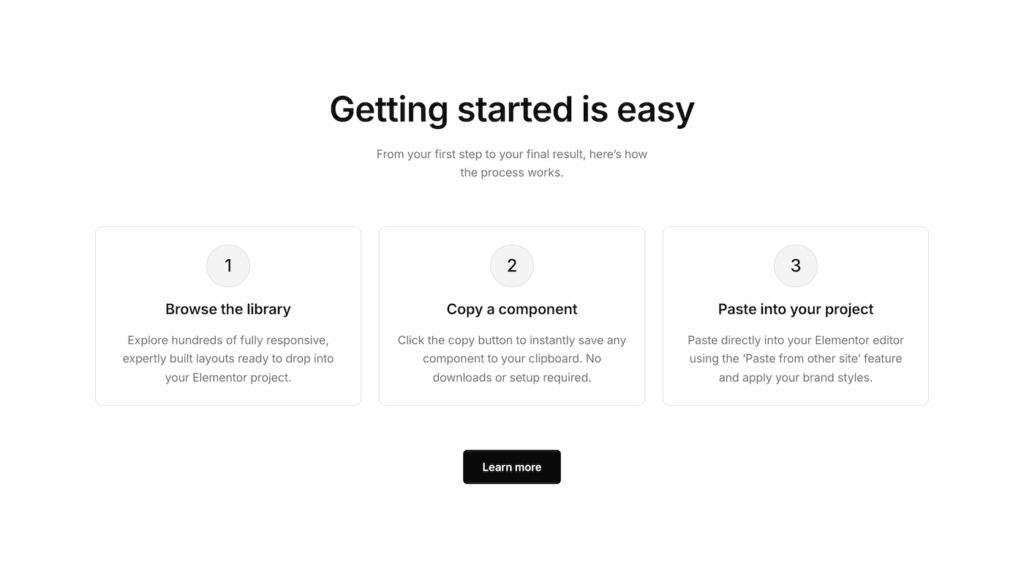
This is especially true when the component is designed with a predictable structure. A how it works section like How it works 08 is very useful because it would otherwise take 30 minutes to build from scratch.
Step 1: Start with a blueprint, not a blank page
If you want faster builds, the first thing to standardize is not your design. It’s your building workflow.
Most websites follow repeatable patterns. You do not need to reinvent structure for every client.
A blueprint that works for most service pages
- Hero
- Proof (logos or testimonial)
- Services or features
- How it works
- Benefits
- FAQ
- CTA and contact
Once you’ve got the blueprint, you are no longer asking “what should come next?” You are simply filling slots.
Why this matters for speed
When the structure is consistent, your component choices become obvious.
For example:
- Section 3 is a “services or features” section. If the client has a list of benefits, you choose a features section from the Element UI Features category.
- Section 6 is FAQs. You pick a layout from FAQs.
You will reuse them constantly.
Step 2: Assemble the page using reusable components
Now you build the page by copying sections that already work, then adapting them. The key is to choose components based on content fit, not just visuals.
Use feature sections when you need clarity fast
Features are one of the most repeated sections in Elementor builds because they do a lot of work:
- communicate value quickly
- make the offer scannable
- break up long paragraphs
- improve mobile readability
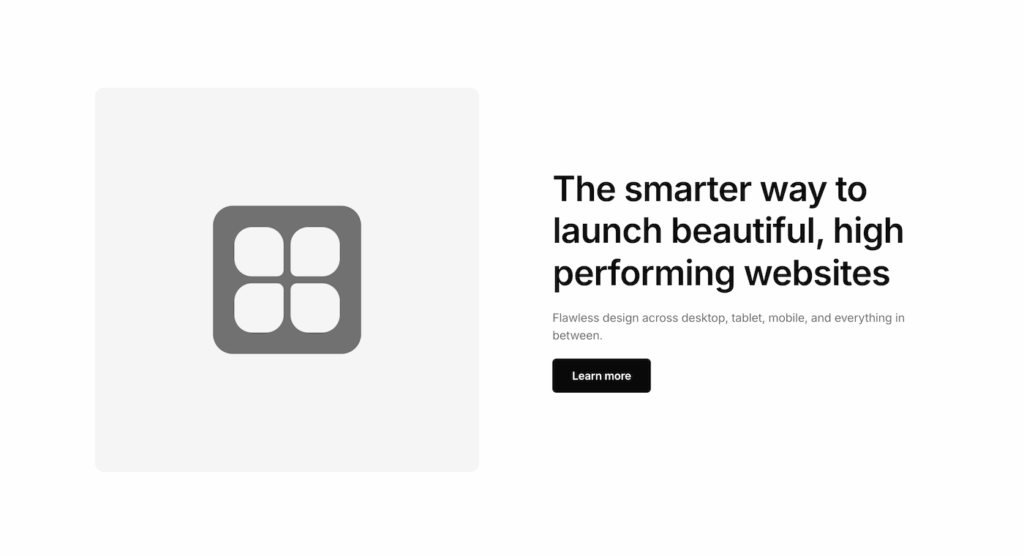
A simple component like Features 01 is a strong default because it supports an image + text format that’s easy to customize and hard to break. It takes seconds to copy and paste into your page but at least 15 minutes to build from a blank canvas.
You can use it for:
- service highlights
- product features
- process benefits
Use FAQs to reduce friction before the CTA
A lot of people add FAQs because they think they should. The better approach is to use FAQs as a conversion tool.
A well-structured FAQ section answers the objections that stop someone from taking action:
- What do you charge?
- How long does it take?
- What happens after I inquire?
- Do you work with my niche?
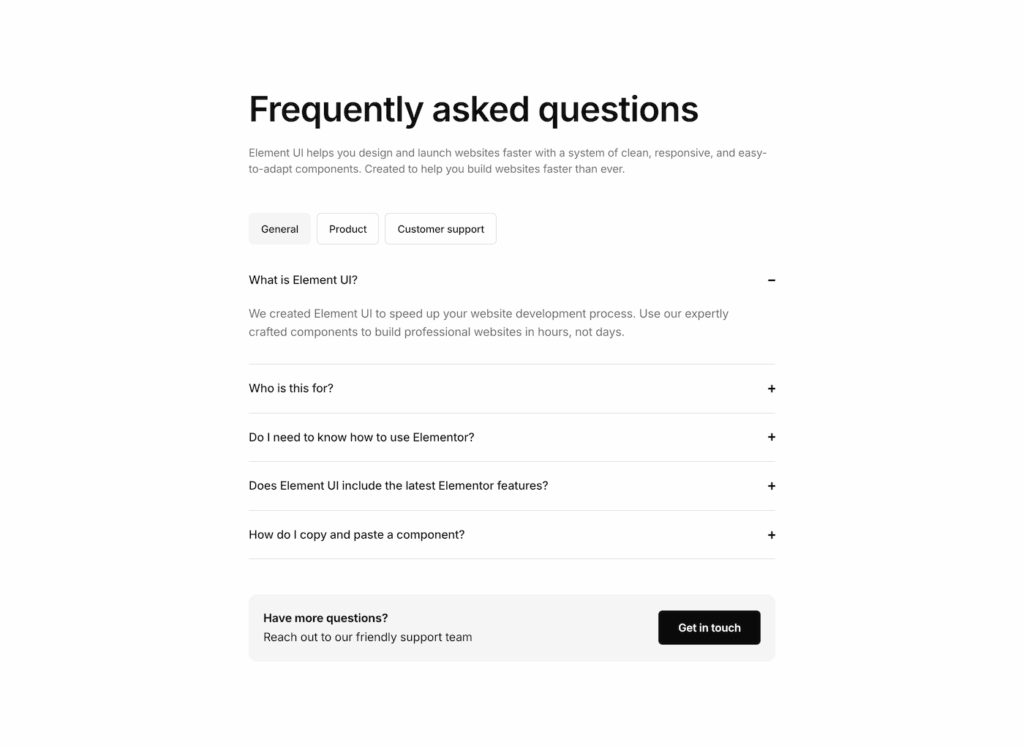
If you have a component like FAQ 13 that lets you group questions and ends with a call to action, that is exactly the kind of layout that can lift conversions, not just fill space.
Step 3: Apply your brand styles, effortlessly
Update headings, rewrite copy, and swap icons and images. Only after that should you tweak the layout.
Most of your styling should happen through your global settings and spacing rules. This keeps the build clean and avoids redoing work when content changes. Here’s our guide on setting up global styles.
Pasting components is the speed boost. The styling is what makes everything feel like it belongs to the site.
Once your page is built and your styles are applied, the whole process starts to compound. You are no longer building from scratch, you are building from a repeatable workflow. Each time you paste a section, you save minutes and for a full website that time saving is hours, or even days of work. Each time you use Element UI, you save decisions. And each time you apply your global styles, you keep the entire site consistent without getting stuck in endless tweaks. Start with one page, follow the three steps, and you will feel the difference immediately. Faster builds, cleaner layouts, and a workflow you can repeat on every new project.
Frequently asked questions
How is a component library different from an Elementor template?
Templates give you a full page or full site starting point. A component library gives you reusable sections like heroes, features, FAQs, and footers, so you can mix and match layouts to suit each project without forcing a full template.
Will my site look generic if I use components?
Not if you customize properly. Components are layout patterns. Your typography, colors, spacing, imagery, and copy are what make the design feel unique, branded, and tailored to the client.
What is the fastest way to apply brand styling after pasting components?
Start with global typography and colors, then standardize spacing across sections. Once those basics are consistent, swap icons and images, tighten the copy, and only then adjust layout details if needed.