
Have you ever built a beautiful service card in Elementor, only to realize the user has to hunt for a tiny “Read More” button to get to the next page?
In modern web design, users expect the entire card to be interactive. Making a full container clickable not only cleans up your UI by removing unnecessary buttons, but it also significantly improves the mobile user experience by providing a larger click target.
With the move to Flexbox Containers, Elementor finally made this a native feature. You no longer need Custom CSS or third-party plugins to turn a container into a link.
When making a container clickable makes sense
Turning a whole area into a link is best practice for:
- Service & Feature Cards: Allowing users to click the icon, title, or background.
- Blog Archives and Loop grids: Making an entire post preview a link.
- Call-to-Action Blocks: High-impact sections where you want to maximize conversions.
How to make an Elementor container clickable (Step-by-Step)
This is the most reliable method in 2026. It uses clean HTML anchor tags and requires zero coding.
- Select your Container: Click on the Edit Container handle of the parent container you want to make clickable.
- Go to the Layout Tab and open the Additional Options accordion.
- Find the HTML Tag dropdown field: Select the a (link) option.
- Add your link and configure the options: Click the gear icon to decide if the link should “Open in a new window” or be “Add nofollow” for SEO purposes. Click the Dynamic Tags icon to setup something more complex.

Why this method is best: The entire container now acts as a single <a> tag. This means your hover effects (like box-shadows or background color shifts) will still work perfectly, and the browser recognizes the whole area as a link.
Important things to check before publishing
Before you hit “Update,” run through this quick quality check:
- Avoid “Link Nesting”: Do not place a button or another link inside a clickable container. This is invalid HTML and will break the layout or cause the browser to get confused about where the user is clicking.
- Hover Styles: It’s always great practice to set a “Hover” state in the Style tab so the user gets visual feedback when they mouse over the clickable item.
- Mobile Testing: Open your site on a phone. Ensure the “click area” is comfortable and doesn’t accidentally trigger if a user is just trying to scroll.
Real-world example: Clickable service cards
When I build service sections, I almost always make the entire card clickable. Users today don’t always scan and click buttons. They are also expecting some clickable containers.
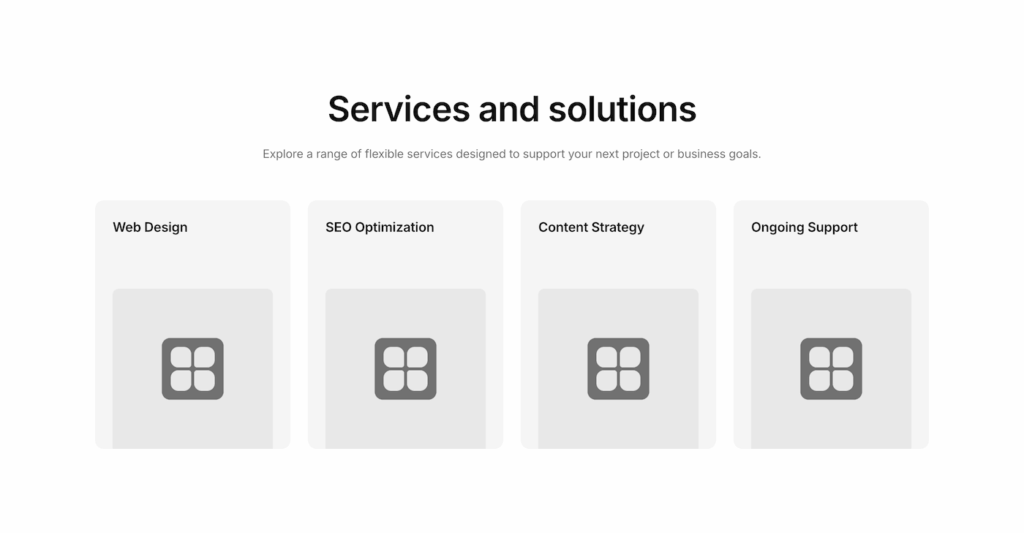
A cleaner UI usually leads to higher engagement. A great example of when to use clickable containers is when you created Services cards. For example in Services 03 component, you can add a fully clickable container to each of those cards to create a seamless transition to the service details. It feels premium and functions exactly how a user expects.
Frequently asked questions
Can I make the full container clickable in Elementor?
Yes, as long as you are using Flexbox Containers, you can set a link directly on the container itself.
Does this work with Flexbox containers?
Yes, this is a native feature specifically designed for the Flexbox and Grid containers.
Will this affect SEO?
Actually, it helps! By using the native link field, Elementor generates a standard HTML anchor tag, which is much better for SEO and accessibility than using a JavaScript “onclick” event.
Can I add hover animations to clickable containers?
Absolutely. You can set background overlays or transform effects (like scaling) in the Style > Hover tab, and they will trigger when the user hovers anywhere on the container.